

Setup
Get started by connecting your first chargers.
🧙♂️ – Wizard
Section titled “🧙♂️ – Wizard”After you register, you will be redirected to our Setup Wizard. Alternatively, you can go to it via https://exolink.cloud/setup.
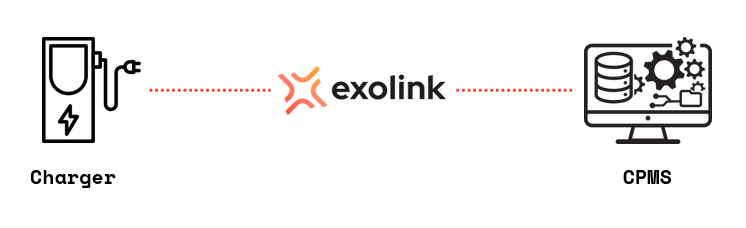
Here you will be guided through connecting Exolink to your CPMS and chargers to Exolink.
Step 1: Connect your CPMS
Section titled “Step 1: Connect your CPMS”Select one or provide your own. The URL must look something like this: wss://example.exolink.cloud:443/
The CPMS URL must be publically reachable.
Do not enter the Charger ID in the CPMS URL.
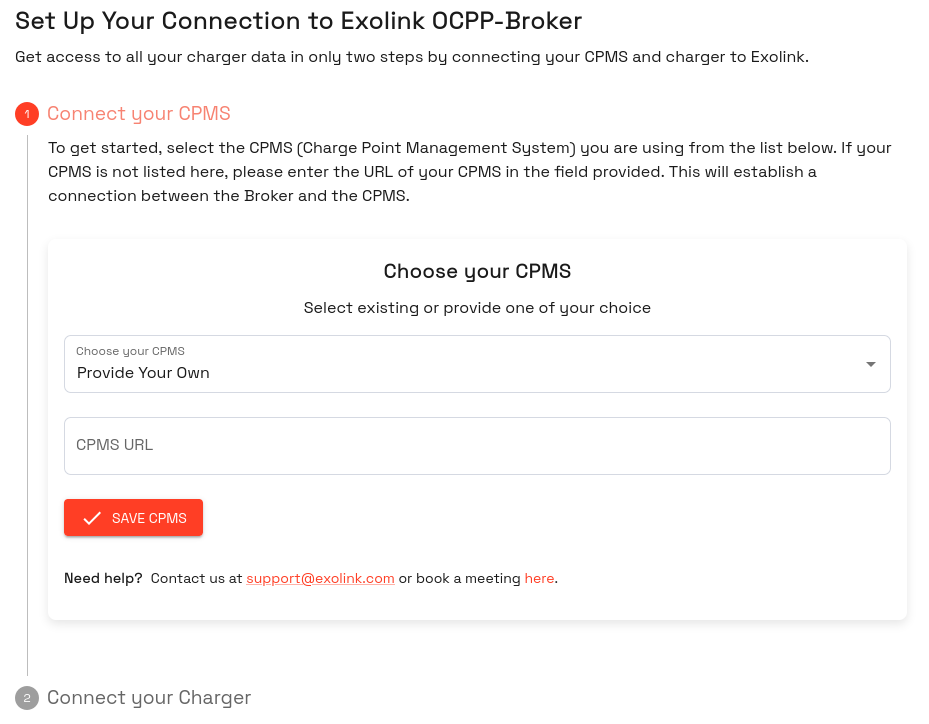 Enter the URL in the first step of the setup wizard
Step 2: Connect your Charger
Section titled “Step 2: Connect your Charger”In Step 2 you see a connect URL, which you have to enter in your charger configuration. The URL looks like this: wss://unique-identifier.exolink.broker/ or for insecure connections: ws://unique-identifier.exolink.broker/
After entering your CPMS URL, the Discovery Mode will be active for 3 hours. Any charger you’re trying to connect during these 3 hours will be registered in Exolink. Once this time period is over, the Discovery Mode has to be started again or the Charger Identifier added to the Charger list manually.
🔌 – Charger Profiles
Section titled “🔌 – Charger Profiles”Once you have finished the Setup Wizard, you will see a Default profile in the Charger Profile list. Here you can view the configured CPMS and how many chargers are assigned to the profile.
🏢 – CPMS
Section titled “🏢 – CPMS”You can add other CPMS in the CPMS list. After that you can either edit the existing Charger Profile or create a new one in the Charger Profile list.
✉️ – Support
Section titled “✉️ – Support”We will be happy to help you 😊
Section titled “We will be happy to help you 😊”We get back to you as soon as possible.